
Bien démarrerGetting started
Bienvenue chez LinkUp.Welcome to LinkUp.
Votre carte est entre vos mains. Ce guide vous accompagne pas à pas : d'abord l'activer, puis compléter votre profil.
Your card is in your hands. This guide walks you through it step by step: first activate it, then complete your profile.
- 1. Activer ma carte1. Activate my card
- 2. Compléter mon profil2. Complete my profile
- Rien ne s'ouvre ?Nothing opens?
Video in French. Every step is also written out below.
Partie 1Part 1
Activer votre carteActivate your card
Trois étapes, à faire une seule fois.Three steps, done only once.
-
Approchez votre carte de votre téléphoneHold your card near your phone
Déverrouillez votre téléphone, puis posez votre carte contre lui, à l'endroit indiqué ci-dessous. Sur iPhone, une notification « Tag NFC de site web » s'affiche : touchez-la. Sur Android, la page s'ouvre en général directement. Pas de NFC ? Scannez le QR code de la carte avec l'appareil photo, puis touchez le lien qui s'affiche.
Unlock your phone, then hold your card against it, in the spot shown below. On iPhone, a "Website NFC Tag" notification appears: tap it. On Android, the page usually opens straight away. No NFC? Scan the card's QR code with your camera, then tap the link that appears.
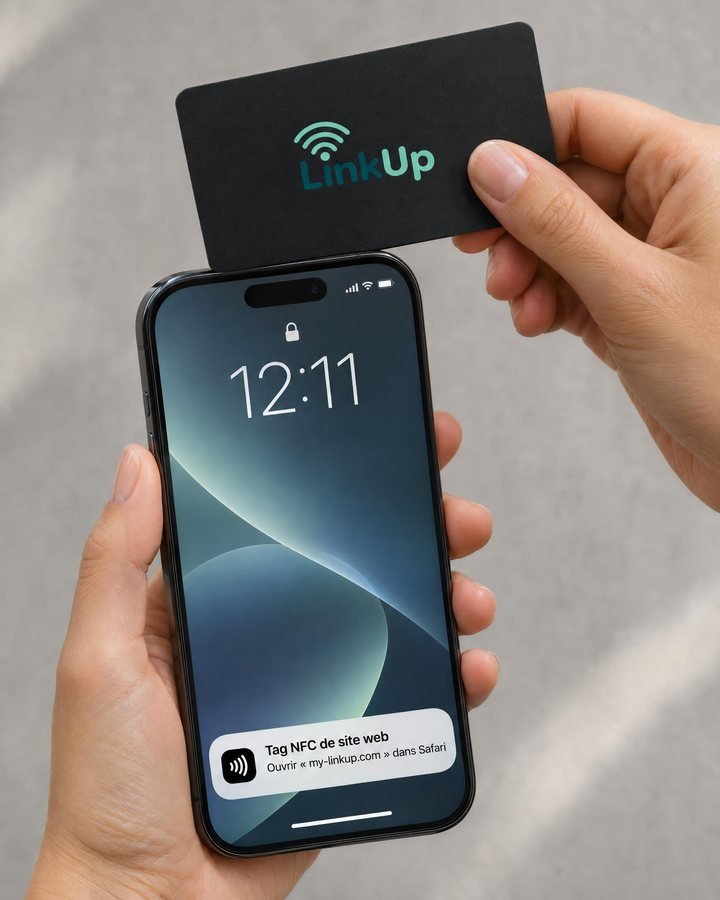
iPhoneen haut du téléphone, puis touchez la notificationat the top of the phone, then tap the notification 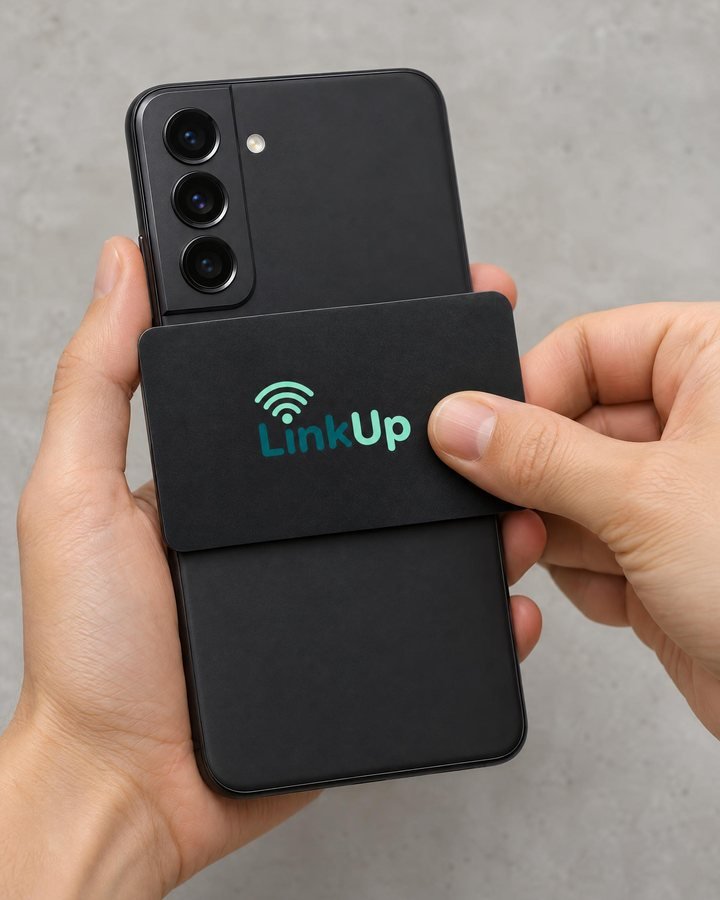
Androidau centre du dos, sous l'appareil photoin the middle of the back, below the camera Sur Android, le NFC doit être activé : ouvrez les Réglages du téléphone et cherchez « NFC ».
On Android, NFC must be turned on: open your phone's Settings and search for "NFC".
-
Créez votre compteCreate your account
La page « Se Connecter » s'ouvre, avec la phrase « Entrez les détails pour créer un compte ». Indiquez votre e-mail, choisissez un mot de passe, puis touchez Se connecter. Votre compte est créé.
The sign-in page opens, with the line "Enter detail to create account" (in French: « Entrez les détails pour créer un compte »). Enter your email, choose a password, then tap Login (Se connecter). Your account is created.
Gardez bien votre e-mail et votre mot de passe : ils vous servent à vous reconnecter pour modifier votre profil. Mot de passe oublié ? Sur cette même page, touchez « Mot de passe oublié ».
Keep your email and password safe: you need them to sign back in and edit your profile. Forgot your password? On the same page, tap "Forgot Password" (Mot de passe oublié).
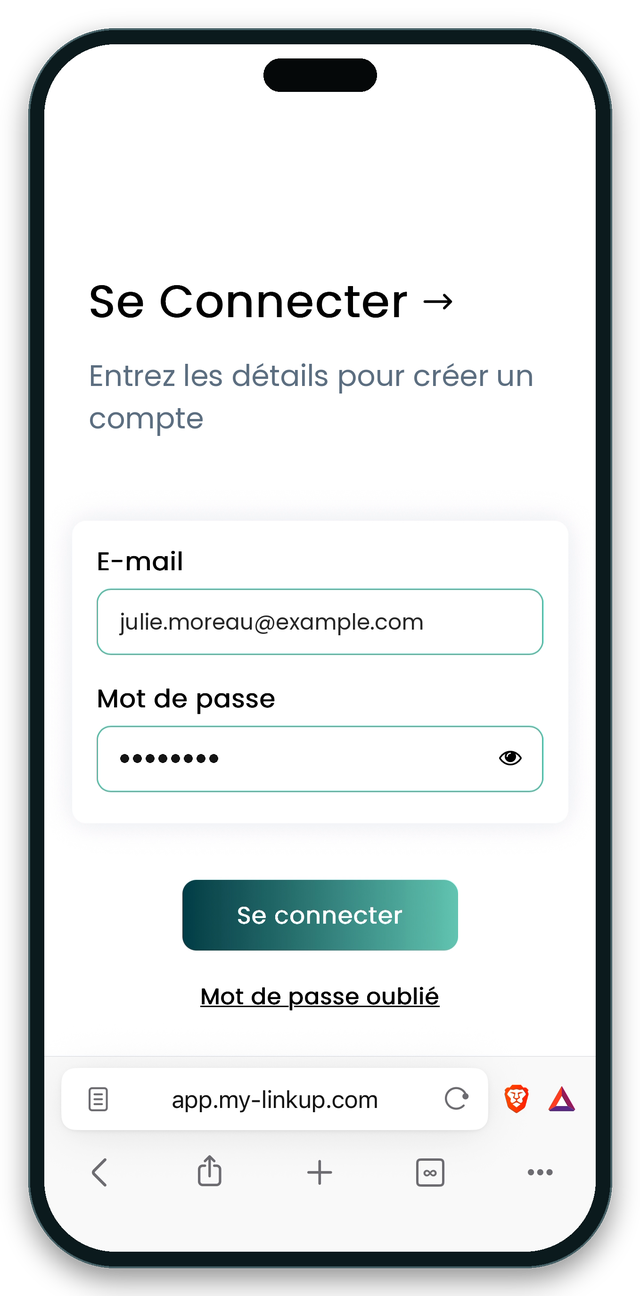
L'écran de première connexionThe first sign-in screen -
Complétez votre profilComplete your profile
C'est votre profil qui s'affiche sur le téléphone de vos contacts quand vous présentez votre carte. Ajoutez votre photo, vos coordonnées et vos liens : la suite de ce guide vous montre comment, bouton par bouton.
Your profile is what appears on your contacts' phones when you present your card. Add your photo, contact details and links: the rest of this guide shows you how, button by button.
Voir comment compléter mon profil ↓See how to complete my profile ↓


Partie 2Part 2
Compléter votre profil, pas à pasComplete your profile, step by step
Vous pouvez tout modifier à tout moment, sans changer de carte.You can change everything at any time, without changing cards.
AOuvrir votre espaceOpen your account
- Touchez Mon espace, en haut de cette page ou du site my-linkup.com, puis connectez-vous avec votre e-mail et votre mot de passe. Si vous venez de créer votre compte, vous y êtes déjà.
- Votre tableau de bord s'ouvre sur votre profil (l'onglet avec votre photo, en bas à gauche).
- Descendez jusqu'au bouton Modifier le profil et touchez-le. C'est sur cette page que tout se règle.
- Tap My account, at the top of this page or of the my-linkup.com website, then sign in with your email and password. If you have just created your account, you are already there.
- Your dashboard opens on your profile (the tab with your photo, bottom left).
- Scroll down to the Edit Profile (Modifier le profil) button and tap it. Everything is set up on this page.

BAjouter vos photosAdd your photos
- Sur la page Modifier le profil, touchez l'icône d'appareil photo : sur l'image du haut pour la bannière, sur le rond pour votre photo.
- Un menu s'ouvre : touchez Photothèque (ou Prendre une photo, ou Choisir le fichier).
- Choisissez votre image.
- Ajustez le cadre en faisant glisser ses coins, puis touchez Rogner et enregistrer.
- Le message « Image de couverture téléchargée. » (ou « Image du profil téléchargée. ») s'affiche : touchez Ok.
- On the Edit Profile (Modifier le profil) page, tap the camera icon: on the top image for your banner, on the circle for your photo.
- A menu opens: tap Photo Library (or Take Photo, or Choose File).
- Choose your picture.
- Adjust the frame by dragging its corners, then tap Crop & Save (Rogner et enregistrer).
- The message "Cover image uploaded." (or "Profile image uploaded.") appears: tap Ok.


Choisissez une photo nette : c'est la première chose que voit votre contact. Pour la bannière, prenez une image horizontale et gardez le sujet au centre : c'est la zone qui reste visible.
Choose a sharp photo: it is the first thing your contact sees. For the banner, use a landscape picture and keep the subject in the centre: that is the part that stays visible.
CRemplir vos informationsFill in your details
- Toujours sur Modifier le profil, dans Détails personnels : prénom, nom, intitulé du poste, entreprise, ville, bio… Remplissez seulement ce que vous voulez montrer.
- Touchez Enregistrer. Le message « Profil enregistré » confirme. Touchez ← Retour pour revenir au tableau de bord.
- Still on Edit Profile (Modifier le profil), under Personal Detail: first name, last name, job title, company, city, bio… Fill in only what you want to show.
- Tap Save (Enregistrer). A confirmation message appears. Tap ← Back (Retour) to go back to the dashboard.
Votre téléphone et votre e-mail s'ajoutent comme des liens, dans la famille « Contact » : suivez l'étape D juste en dessous.
Your phone number and email are added as links, in the "Contact" group: follow step D just below.
DAjouter un lienAdd a link


Instagram, WhatsApp, téléphone, site web, TikTok, Facebook, LinkedIn et bien d'autres.
Instagram, WhatsApp, phone, website, TikTok, Facebook, LinkedIn and many more.
- Sur la page Modifier le profil, descendez jusqu'à la partie Liens.
- Touchez + Ajouter un lien.
- Faites défiler la liste et touchez l'icône du lien à ajouter. Les liens sont rangés par familles : Médias sociaux, Contact, Portfolio, Vidéo & Audio, Financier & Affaires, Sites web, Liens personnalisés.
- Une petite fenêtre Ajouter s'ouvre. Remplissez la case : le tableau juste en dessous vous dit quoi taper.
- Sous la case, l'adresse complète s'écrit pendant que vous tapez. Vérifiez qu'elle est juste.
- Touchez Soumettre. Le message « Lien ajouté avec succès. » s'affiche : touchez OK. C'est fait.
- On the Edit Profile page, scroll down to the Links part.
- Tap + Add Link (Ajouter un lien).
- Scroll through the list and tap the icon of the link you want. Links are sorted into groups: Social Media, Contact, Portfolio, Video & Audio, Financial & Business, Websites, Custom Links.
- A small Add window opens. Fill in the box: the table just below tells you what to type.
- Under the box, the full address builds up as you type. Check that it is correct.
- Tap Submit (Soumettre). The message "Link added successfully." appears: tap OK. Done.
Recommencez pour chaque lien que vous voulez ajouter.
Repeat for each link you want to add.
    Instagram, TikTok, Snapchat, X, Pinterest… | Votre nom d'utilisateur seulement, pas le lien complet. |
|---|---|
   Téléphone, WhatsApp, Telegram | Votre numéro. |
 E-mail | Votre adresse e-mail. |
 Site web, portfolio et les autres liens | L'adresse de la page. Le plus simple : copiez-la depuis votre navigateur, puis collez-la dans la case. |
| Instagram, TikTok, Snapchat, X, Pinterest… | Your username only, not the full link. |
|---|---|
| Phone, WhatsApp, Telegram | Your number. |
| Email | Your email address. |
| Website, portfolio and other links | The page address. The easiest way: copy it from your browser, then paste it into the box. |
Où trouver mon nom d'utilisateur ?Where do I find my username?
Ouvrez l'application du réseau social (Instagram, TikTok…) et allez sur votre profil : votre nom d'utilisateur est écrit en haut.
Open the social network's app (Instagram, TikTok…) and go to your profile: your username is written at the top.
Comment copier l'adresse d'une page ?How do I copy a page address?
Ouvrez la page dans votre navigateur (Safari, Chrome…). Touchez la barre d'adresse et copiez l'adresse. Revenez dans LinkUp, touchez la case, puis « Coller ».
Open the page in your browser (Safari, Chrome…). Tap the address bar and copy the address. Go back to LinkUp, tap the box, then "Paste".
Modifier ou supprimer un lienEdit or delete a link
Sur Modifier le profil, touchez le lien dans la partie Liens. Corrigez la case puis touchez Mettre à jour, ou touchez Supprimer.
On Edit Profile, tap the link in the Links part. Fix the box then tap Update, or tap Delete.
EVérifier votre profilCheck your profile
- Sur le tableau de bord, touchez Aperçu, en haut à droite : vous voyez votre profil comme vos contacts le verront.
- Touchez chacun de vos liens pour vérifier qu'il ouvre la bonne page.
- Le test final : approchez votre carte du téléphone d'un proche, et regardez ce qu'il voit.
- On the dashboard, tap Preview (Aperçu), top right: you see your profile the way your contacts will.
- Tap each of your links to check that it opens the right page.
- The final test: hold your card near a friend's phone, and see what they see.

FPartager votre profil sans la carteShare your profile without the card
Sur le tableau de bord, touchez Partager, en haut à gauche : vous obtenez votre code QR et le bouton Copier le lien, pour envoyer votre profil par message ou l'ajouter à votre signature d'e-mail.
On the dashboard, tap Share (Partager), top left: you get your QR code and the Copy Link (Copier le lien) button, to send your profile by message or add it to your email signature.
Rien ne s'ouvre ?Nothing opens?
Essayez ces solutions, dans l'ordre.Try these fixes, in order.
-
Allumez et déverrouillez votre téléphone, puis approchez de nouveau la carte.
Turn on and unlock your phone, then hold the card near it again.
-
Fermez l'appareil photo et Cartes (Apple Pay), et désactivez le mode Avion : l'iPhone ne lit pas la carte pendant ce temps.
Close the camera and Wallet (Apple Pay), and turn off Airplane mode: your iPhone can't read the card meanwhile.
-
iPhone 7, 8 ou X : ouvrez le Centre de contrôle et touchez le bouton de lecture NFC, puis approchez la carte. Depuis l'iPhone XS, la lecture est automatique. Sinon, utilisez le QR code.
iPhone 7, 8 or X: open Control Center and tap the NFC reader button, then hold the card near. From iPhone XS on, reading is automatic. Otherwise, use the QR code.
-
Sur Android, activez le NFC : ouvrez les Réglages du téléphone et cherchez « NFC ».
On Android, turn on NFC: open your phone's Settings and search for "NFC".
-
Placez la carte au bon endroit : en haut sur iPhone, au dos sur Android. Gardez-la contre le téléphone un instant. Sur Android, la zone NFC est souvent au centre du dos, parfois près de l'appareil photo : faites glisser doucement la carte. Si votre coque est très épaisse, retirez-la pour essayer.
Place the card in the right spot: at the top on iPhone, on the back on Android. Keep it against the phone for a moment. On Android, the NFC area is often in the middle of the back, sometimes near the camera: slide the card gently. If your case is very thick, take it off and try again.
-
Utilisez le QR code : il fonctionne sur tous les téléphones. Ouvrez l'appareil photo, visez le QR code en bas à droite de la carte, puis touchez le lien qui s'affiche.
Use the QR code: it works on every phone. Open your camera, point it at the QR code in the bottom right corner of the card, then tap the link that appears.
Besoin d'aide ?Need help?
Écrivez-nous sur WhatsApp ou par e-mail. Nous sommes disponibles du lundi au vendredi, de 9h à 18h (UTC−4).
Message us on WhatsApp or by email. We are available Monday to Friday, 9am to 6pm (UTC−4).